
Problem
If you setup an AWS EC2 instance using one of the default operating systems
(such as Amazon Linux 2023 or Ubuntu), you’ll notice that the root user and
the default user (ec2-user or ubuntu) are configured with an empty password.
On top of this, the /etc/sudoers.d/90-cloud-init-users file contains the following
configuration, allowing password-less sudo access for the ec2-user:
# Created by cloud-init v. 22.2.2 on Fri, 10 May 2024 09:56:37 +0000

# User rules for ec2-user
ec2-user ALL=(ALL) NOPASSWD:ALL
This doesn’t look very good.
To be fair, the default setup uses SSH as the only ingress channel. SSH is
configured with PasswordAuthentication no to enforce public key authentication
by default. This reduces the security implications from a password-less ec2-user
and root setup.
However, if the same server is to host other internet-accessible services, such
as a web server, the password-less sudo can be a big issue since any intruder
could find a way to the ec2-user, and eventually, the root access with few
impediments in his privesc attempts.
Solution
Going for a full-fledged Identity Management (IdM) solution was a bit of an
overkill for my use case. I settled with using Parameter Store provided by
AWS System Manager to store the hashes for the user and root passwords. And
then, I used AWS CLI to fetch those hashes and set the new passwords
using usermod command through user-data.sh at boot time. Here are the details:
Step 1: Prepare password hashes for root and default user
You can do this interactively on your shell. We will generate a duly-formatted
hashed string for myverysecretpassword
We can use the venerable tool, openssl, to generate a random salt and then
generate the SHA512 hash for the required password:
$ openssl passwd -6 -salt $(openssl rand -base64 32) myverysecretpassword
The output would look something like this:
$6$e1OaNL+aC6sKpczH$1p8NKTfaP33ABOjxfV6tC5loMbLTygSBf5IU/Mukngie3XNP3eMrIO/iiTs4Jz5X4MHPoGwKqSMLVxaXI73xB0
This string might look familiar, since this is exactly how Linux stores password
hashes in the /etc/shadow file. To understand this string format you can use
man 5 crypt.
Step 2: Store the password hashes in Parameter Store
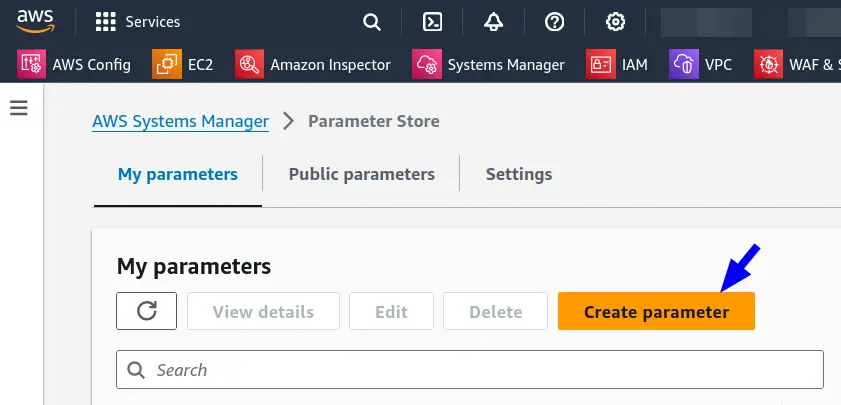
On the AWS Management Console, browse to AWS Systems Manager -> Parameter Store, and then click on Create Parameter:
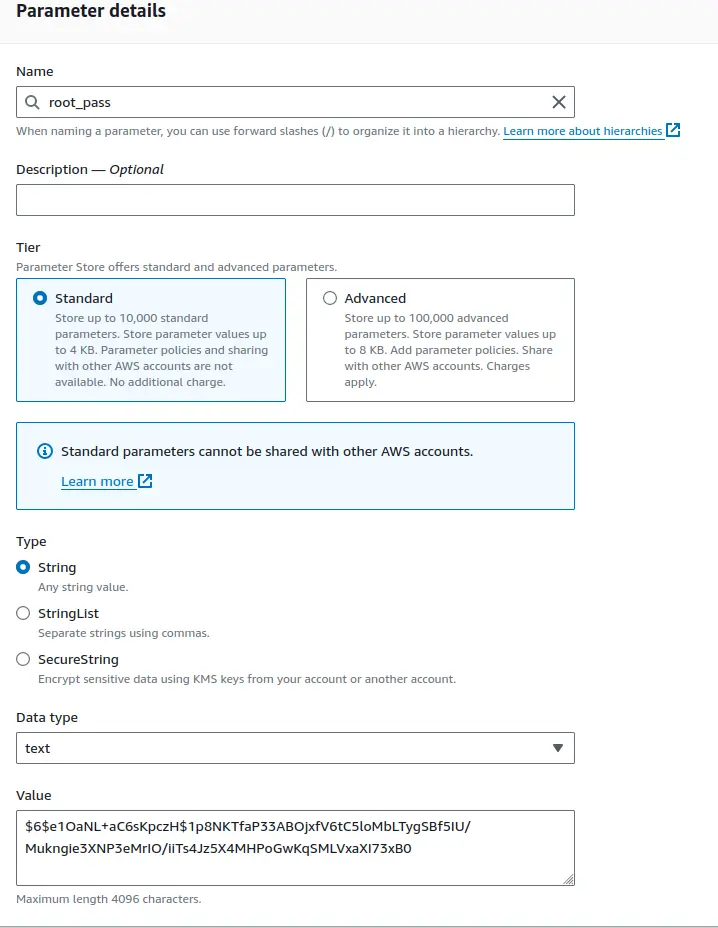
Set a name for the new parameter, and then paste the hash string from Step 1
in the Value field. Hit Create Parameter when done.
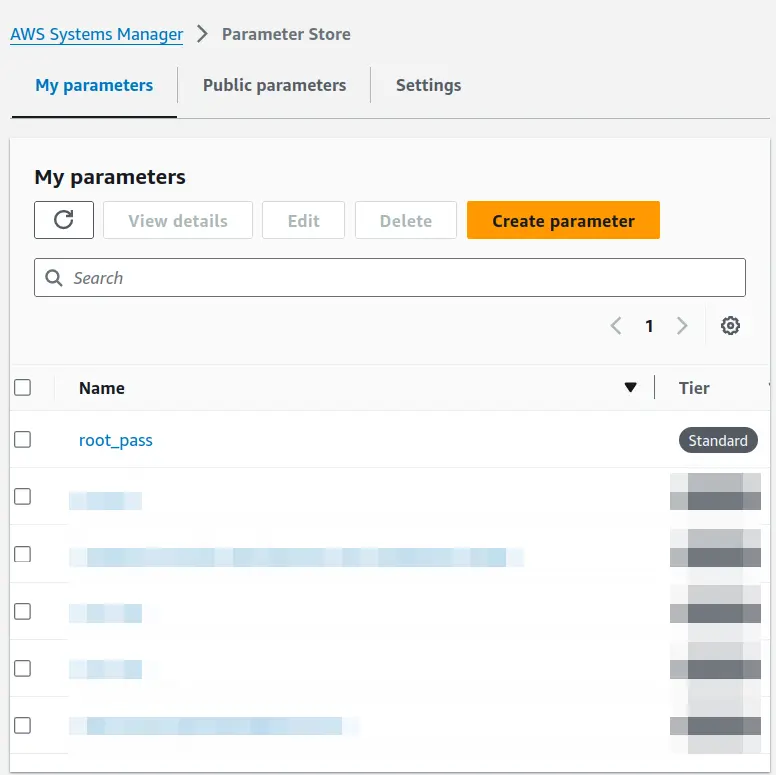
The new parameter should now be visible:
Repeat Step 1 and Step 2 to create a separate hash string for the user
account as well.
Step 3: Configure user-data.sh to fetch and set the new passwords
We can use AWS CLI in the user-data.sh script to fetch the parameters, and
then use usermod to set the password. Here’s a short bash script to perform
these steps:
# Fetch the hashed password strings from the Parameter Store
root_pass=$(aws ssm get-parameters --names root_pass --query "Parameters[0].Value" --output text)
user_pass=$(aws ssm get-parameters --names user_pass --query "Parameters[0].Value" --output text)

# Set root password
usermod --password "$root_pass" root

# This code sets the user password based
# on whether we are on AL2023 or ubuntu
if command -v apt-get >/dev/null 2>&1; then
  usermod --password "$user_pass" ubuntu
elif command -v yum >/dev/null 2>&1; then
  usermod --password "$user_pass" ec2-user
fi
Step 4: Disable NOPASSWD sudo for the default user
A simple sed can take care of this:
# Disable passwordless sudo
sed -i '/^\s*#/!s/^/#/' /etc/sudoers.d/90-cloud-init-users
Result
After this setup, all of our EC2 instances would have a password enabled for the root account and the default user account. The password-less sudo would also be disabled. Both these steps would considerably increase the privesc time.
The parameter stored in the Parameter Store can be updated every X days, depending on the perceived threat environment.